Compatible with Chrome and Edge
Instruction Guide
We have a simple tutorial guide which explains the features of the software extension and what each button inside the extension does. Read our tutorial and welcome guide on how to use the extension to the fullest. Use all the features of this browser software.
If you are interested in other web extensions to install, you might wish to check out the Microsoft Bing Search with Rewards extension.
Microsoft Bing Search with Rewards Extension
It allows you to complete daily offers to get points.
Track the number of points you have currently and the rewards you can redeem with these points.
The ways to get points & get rewarded is search with Bing, browse with Microsoft Edge and shop at the Microsoft and Windows stores to earn rewards.
Sponsored Link:
Other useful extensions
Another extension which would be useful to install is the iCloud bookmarks extension.
It allows to keep your Chrome bookmarks on Windows synced up with the Safari bookmarks on your iPhone, iPad, and Mac.
iCloud will store your website bookmarks so it is accessible even on your iPhone and Mac.
Try these other two extensions and see if it will boost your daily productivity.
One click to generate a secure and strong password
Features:
- Generate random password
- Generate custom password
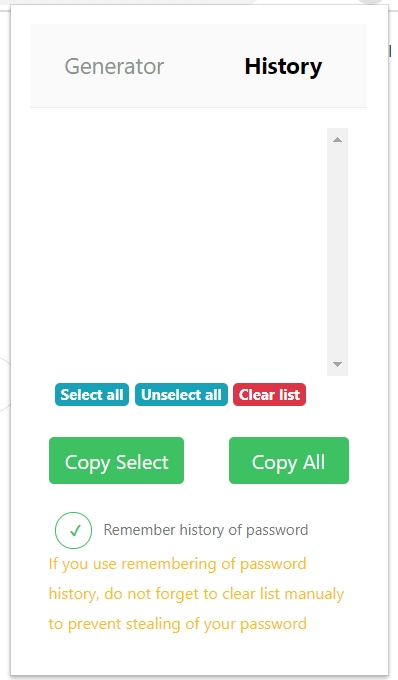
- Password history data storing
- Remember password for next times
What is a password generator?
A password generator is a tool that creates passwords of any length, complexity and mix of letters, numbers, and symbols. Password generators are useful for creating strong passwords when you're setting up accounts or resetting passwords.
Passwords should be strong because they're the first line of defense against hackers and other malicious users who want to access your private information. The longer and more complex your password is, the harder it will be for someone else to guess it.
Password generators are also useful for creating unique passwords that you can use on multiple sites. Since many sites have similar requirements for passwords (usually at least eight characters long), using one password across all your accounts can be problematic if someone hacks one of them.
A strong password can be hard to remember, but it's easy to make one.
Here are some tips:
Use a mix of letters, numbers and symbols. The more random the characters, the harder it is for hackers to guess.
Use long passwords. The longer the password, the better. A passphrase — a series of words strung together with no spaces — is easier to remember than an arbitrary string of characters.
Don't use personal information in your password. That includes birthdates, names of family members or pets and addresses. Hackers often use these details to crack accounts with weak passwords or brute force attacks that guess thousands of combinations at once.
There are a lot of password generators out there, but not all of them are created equal. Here are a few of the most popular password generators and why they're so effective.
1Password: This premium software is one of the best-known password generators on the market, and for good reason. It creates high-quality passwords that are easy to remember and also random enough to be difficult for even the most advanced hackers to crack. 1Password also has an auto-fill feature that lets you save your login information in one spot so that you can quickly enter it into other sites with just a click or two.
Dashlane: Dashlane is another top-notch password generator that boasts similar features as 1Password, but it's available at no cost if you sign up for an account with them first — no credit card required! The app also includes other security features like multifactor authentication, which prevents unauthorized access to your account even if someone has your username and password. This can be especially helpful if someone steals your laptop or phone and tries logging in from a different location than usual (like at home).
LastPass: LastPass is an online service that helps users generate strong passwords for every site they use by storing them in one secure location instead
Tutorial:
- Install the Extension
- After installing the extension, click on the icon on the toolbar.
Sponsored Link: